How to Encrypt a File: A Complete Guide
Follow these simple steps to encrypt a file. It will allow you to encrypt files of any type and size, on any kind of drive, including USB drives and network shares. Encrypted files can also be uploaded to the cloud, sent as e-mail attachments, or copied to anywhere you wish, and they will remain password-protected.
1. Download a program to encrypt files
To encrypt files with strong encryption, you first need to download and install a file encryption tool like CryptoForge:

2. Open the encryption menu
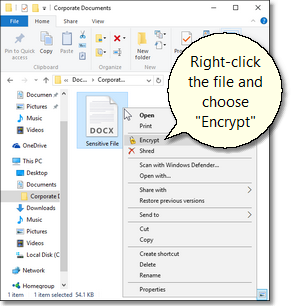
Once the program has been installed, right-click the file you want to encrypt and choose "Encrypt" from the context menu. If the "Encrypt" option does not appear in the menu, you have not yet installed the file encryption software.
3. Enter the password.
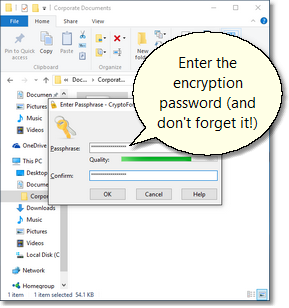
Then enter a strong password and store it in a secure place. If you forget or lose the password, you will not be able to decrypt the data.
4. Confirm and encrypt
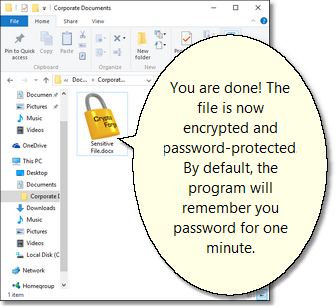
Confirm the encryption. The encrypted file can now be moved freely, uploaded to the cloud, sent by email as file attachment, or copied to a USB memory stick. And the file will always remain password-protected.
|
Read more...
Supported Systems

- Windows 11
- Windows 10
- Windows 8.1
- Windows 8
- Windows 7
- Windows Vista
- Server 2019
- Server 2016
- Server 2012/R2
- Server 2008/R2
- Server 2003/R2
- Windows XP
Reviews and Awards
★★★★★
4.71 out of 5 based on 127 customer reviews. More Reviews
|